Apple Release RAW Compatibility Update 3.6

Apple have released RAW Compatibility Update 3.6 for Aperture 3 and iPhoto 11. Digital camera RAW formats retain more image information than JPEGs and can produce better results when used with imaging applications such as Aperture and iPhoto.

Mac OS X v10.6 Snow Leopard provides system-level support for digital camera RAW formats from the following cameras:

Supported by Digital Camera RAW Compatibility Update 3.6

Canon EOS Rebel T3 / 1100D / Kiss X50
Canon EOS Rebel T3i / 600D / Kiss X5
Olympus E-5
Panasonic Lumix DMC-FZ100
Pentax K-r
Pentax K-5

Introducing Presets in Lightroom 2

This summer I embarked on a photographic adventure exploring the power of Adobe Photoshop Lightroom 2. Previously my photography workflow involved a brief encounter with Apple Aperture and then back to the comfort and simplicity of iPhoto with Photoshop as an external editor.

Adobe Lightroom has transformed my opinion on photography post production completely and not to exaggerate too much has revolutionised how I not only process my photos and also the resultant photograph.


One of the great aspects of the software is that it is usably right out of the box in that you can manage, manipulate and publish your photos quickly and easily. That said the more I use the software the more power and opportunity it offers.

If like me you are somewhere between complete novice and pro and don’t quite have the confidence to use Lightroom’s image control tools unaided then ‘Presets’ are an excellent way to explore different (non destructive) photo outputs. It took me a month to realise there are considerably more presets out there than those shipped with the product and in actual fact there were a stack of photographers out there developing and supplying (many of them free) their own custom presets.

Presets are simply a one click image transformation for your photos. Personally I think if you are going to get the most from Lightroom you should think of presets as a starting point, i.e. add the effect and then apply your own future adjustment to attain the desired output, don’t just apply a preset and export.

I have been using a range of presets over the last month and in addition to the obvious benefit of transforming my images I have also learned a considerable amount in how the ‘Develop’ tab works in Lightroom and how to manually manipulate my photos. Admittedly not all presets out there are free but any I have paid for have cost around $10 for a set which is perfectly affordable (just).

Installing Presets is simple. Load Lightroom, select any image and click on the Develop tab on the top right of the application. Now right click in the presets tab (left of the screen and select “install” Find the preset you have downloaded and want to install and Lightroom will add it to the Presets menu. As your list of presets grow you can create folders for easy management and access.

Lightroom ships with a nice set of presets but here are some sites that offer both free and premium presets. If you know (or find any others) I would love to hear about them.

Presets:
640 Pixels Presets
Vintage New York Preset
Max Payne Style Preset
The Lights Right Presets
Camera Dojo Free Presets
Rebecca Myers Presets
Shutter Sisters Presets
Mark Elkin’s Presets
Better Black and White
Preset Heaven
Gantico Presets
Rebecca Lily’s Presets

Moving photos from iPhoto to Lightroom in 3 Easy Steps

One of the nicest non photo-related aspects of Lightroom is its ability to library files without moving them to a new location.

If you have an iPhone or especially an AppleTV then you will know how great it is to be able to sync photos directly from your iPhoto / Aperture library.

A number of photograph friends have cited this as a reason for using iPhoto or Aperture over Lightroom yet a solution is relatively simple. It is possible to share the original photos (i.e. the ones straight from the camera imported into iPhoto) with Lightroom following this relatively simple process :

1. Accessing your photo files in iPhoto

Right click on your iPhoto library (users/photos/iphoto library) and select “show package contents” this will open a new finder window showing a series of folders.

The iPhoto icon is really a large folder containing your photos, meta information and revisions.

You are not doing any damage to your photographs or even your iPhoto library by opening the package in this way.

2. Make Alias

Locate the ‘Contents’ folder, this should contain subfolders listing the various years for which you have photos. Right click on this folder and select “Make alias” you can call it whatever you want.

Now drag this alias file to your desktop or documents folder. We have to use the alias file as Lightroom is unable to open the iPhoto package.

As you will have to repeat the process if you add new photos to your iPhoto library it is worth keeping this alias file in your documents folder.

3. Import

Back in Lightroom click on the File Menu and import and then locate this alias file. Lightroom will take you through the next steps. I opted to keep the photos in their current location to avoid duplications wasting disk space.

This can take some time depending on the number of photos in your iPhoto library. Note that the two applications don’t work together i.e. adjustments you make in Lightroom will not appear in your iPhoto library.

Five Point iPhoto Workflow

Despite having a bit of a play with Apple Aperture I have found myself returning to iPhoto again and again. Perhaps it is the way it easily integrates with iLife and iWork or the fact the photo books offer more option who knows but I use it on more or less a daily basis.

The workflow tends not to change regardless of the type of photos being taken. iPhoto is great for the home user with dozens of holiday or  family photos. Grouping photos by events is brilliant and the face recognition function is growing in its usefulness as it learns the faces in my photos.

My five step workflow is relatively simple. Most of the photos I end up sharing with the world end up on Flickr. Some family photos are shared via MobileMe with other family members, both sharing methods are effortless.

1. Crop

Generally no photo is perfectly framed more often than not I have stray artifacts that have to be removed before a photo is even close to being presentable. Cropping in iPhoto is easy (click the edit button to reveal the full range of editing functions available. The crop function can also be restricted to the popular photo sizes. Drag the cropping frame over the area you want to be the final masterpiece, hit enter and you are done.

2. Retouch

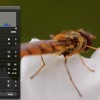
The retouch tool is possible the most useful tool I have come across in any photo application. Click on a blemish and it is gone. The tool is particularly useful for family photographs if children have the remains of their lunch on their face although in this photo I was able to remove tiny grains of sand on the insect in a few seconds. Keep the retouch circle as small as you can (obviously slightly larger than the blemish, click and it is gone.

3. Enhance

Hidden under the bonnet of the iPhoto interface is a pretty sophisticated ehanced control panel. Click the ‘Adjust’ button to reveal the advanced control. You can see from the screen shot I have just tweaked the image slightly increasing the saturation and tint a little.

Too much adjustment can make a photo look completely fake but a bit of a tweak can transform a photo. Remember if you feel iPhoto doesn’t offer enough editing power you can set your editing to be performed by an external application (such as Photoshop) in the iPhoto Preferences.

4. Tag

It can be a bit of a pain at the time but tagging your photos can make life alot easier later on. I tend to use a maximum of three tags per photo, Macro, Insect etc. This means I can quicky find photos from my library that contain insects, a family member, a location etc.

This is really useful as your library grows. Recently a photography competition was launched based on a local location, I was able to locate all the photos I had taken of this area in seconds and to be honest I had forgotten many of them.

5. Export

Exporting to MobileMe is a breeze, select the photos you want to share and click the MobileMe button along the bottom of the iPhoto interface. iPhoto offers direct share capabilities for MobileMe, Facebook and Flickr, that said I don’t really like the way iPhoto exports to Flickr.

Each export is listed along the side panel of iPhoto and although it can be handy to be able to delete from Flickr directly from iPhoto I prefer to be able to put a photo on iPhoto and forget about it.

I tend to use the export option (file, export) and export the photos I want to share on Flickr and upload these via either Flickr’s web upload interface or more recently use the brilliant Dropzone application.

To see the final version of this insect photo shared on Flickr click here.   Constructive comments are always appreciated as I am complete novice photographer trying to learn.